Daily workflows
ADSfolio helps with three tasks that researchers repeat often:
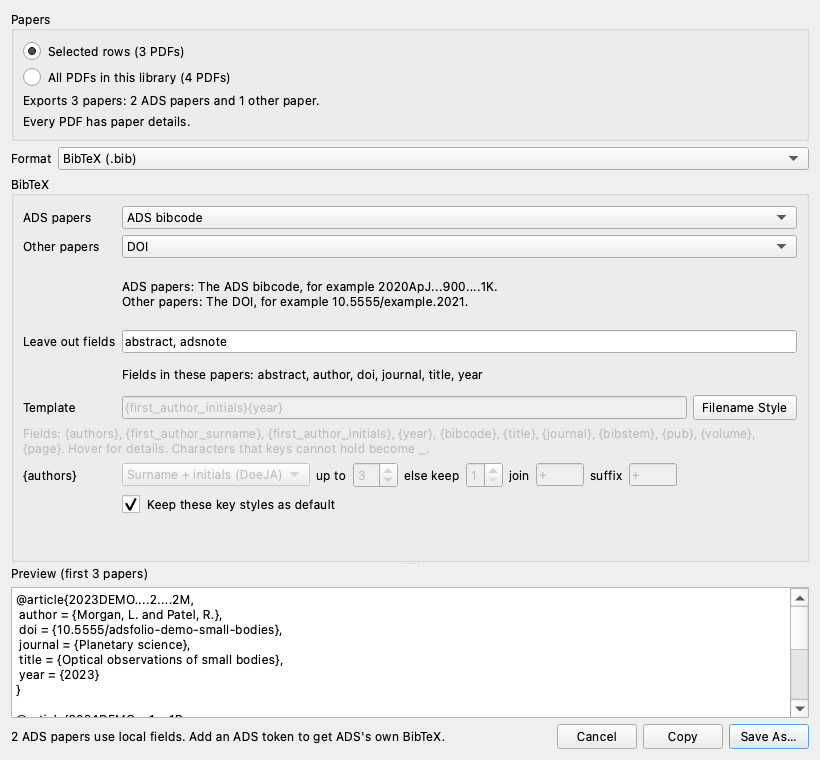
Keep a BibTeX file for your paper, for example in Overleaf.
Watch a folder and rename new papers automatically.
Make your CV from your publications in LaTeX, HTML, Markdown, plain text, or your own format.
The video shows these windows with fictional sample data. It also shows how to save ADS fallback for repeated Identify runs.
Keep ADS fallback enabled
Open Identify → Advanced options….
Choose All libraries or This library only.
Enable Allow ADS fallback.
Choose Save Defaults.
Later Identify runs restore the saved choice. To change only the current run, change the checkbox without saving. See Identify defaults.
Keep a BibTeX file for your paper
Collect the papers you cite in a NASA ADS library. Then export that library as
BibTeX for LaTeX or Overleaf. ADS BibTeX uses the bibcode as the citation key,
for example \cite{2024DEMO....1....1R}.
Identify your PDFs. See Getting started.
Select papers, then choose Tools → Add to ADS Library…. Choose an existing ADS library or create one. ADSfolio adds papers to ADS libraries. It never removes papers from them.
Choose Tools → Export ADS Library…, select the library, keep BibTeX, and choose Export. Save the file, for example as
references.bib. Leave out fields dropsabstractandadsnoteby default.Upload
references.bibto your Overleaf project, or copy it next to your LaTeX file. Use\bibliography{references}in the document.
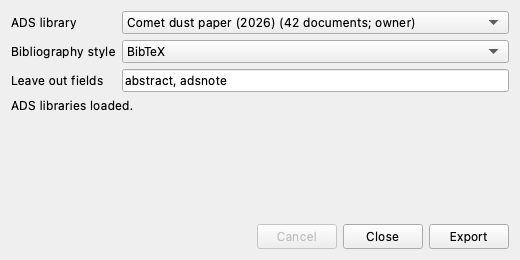
The export is a snapshot. Export again after you add papers. To update the file automatically while you write, use the command-line library watcher. See Tutorial 3, step 4.
Watch a folder and rename new papers
Let ADSfolio identify and rename each PDF that arrives in a folder, for example the folder where your browser saves papers.
Add the folder with Add PDF Folder… or File → Add Library Root….
When ADSfolio asks, choose Watch, Identify, and Rename. This choice starts watching now and at each start. It also processes new PDFs automatically. Then skip the remaining steps.
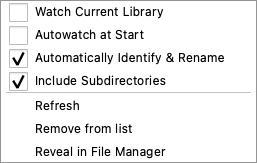
For a library that you added earlier, right-click it under LIBRARIES. Choose Watch Current Library to start watching now.
Choose Automatically Identify & Rename to process new PDFs without a question. Without this choice, a notice offers Identify & Rename for each new PDF.
Optional: choose Autowatch at Start to watch the folder each time ADSfolio opens.
Renames use the saved settings from the Rename window. Set the filename template there first. Check it with Preview. The watcher also checks changes to cataloged PDFs. A proven incremental annotation save keeps the existing identification without a rename. Automatic renaming requires a verified PDF identity check. A new PDF that states no arXiv ID or DOI, or one that contradicts the found record, keeps its name and shows a warning. If the template requires missing metadata, the watcher keeps the filename. Check Notifications for the missing fields. Add the metadata or choose a template without those fields. Then retry the rename. If the template requires a bibcode, the watcher can retry enabled ADS after an external lookup. ADSfolio must verify any ADS match against the PDF.
ADSfolio can also check existing records for ADS updates. At startup and every 24 hours, it asks first. You can also choose Tools → Check for ADS Updates. It checks registered libraries even when their watchers are off. When ADS provides a verified match or new bibcode, ADSfolio updates the record and applies the saved Rename settings. A failed identity check or filename collision keeps the affected files in place. Review the reported issue and retry. See Watching library roots.
Each library has its own watch settings. ADSfolio does not watch a library
until you turn watching on for it. A ● beside the library name shows an
active watcher. The library tooltip shows all three watch settings. See
Watching library roots for details. For the
command line, see Tutorial 4, step 4.
Make your CV from your publications
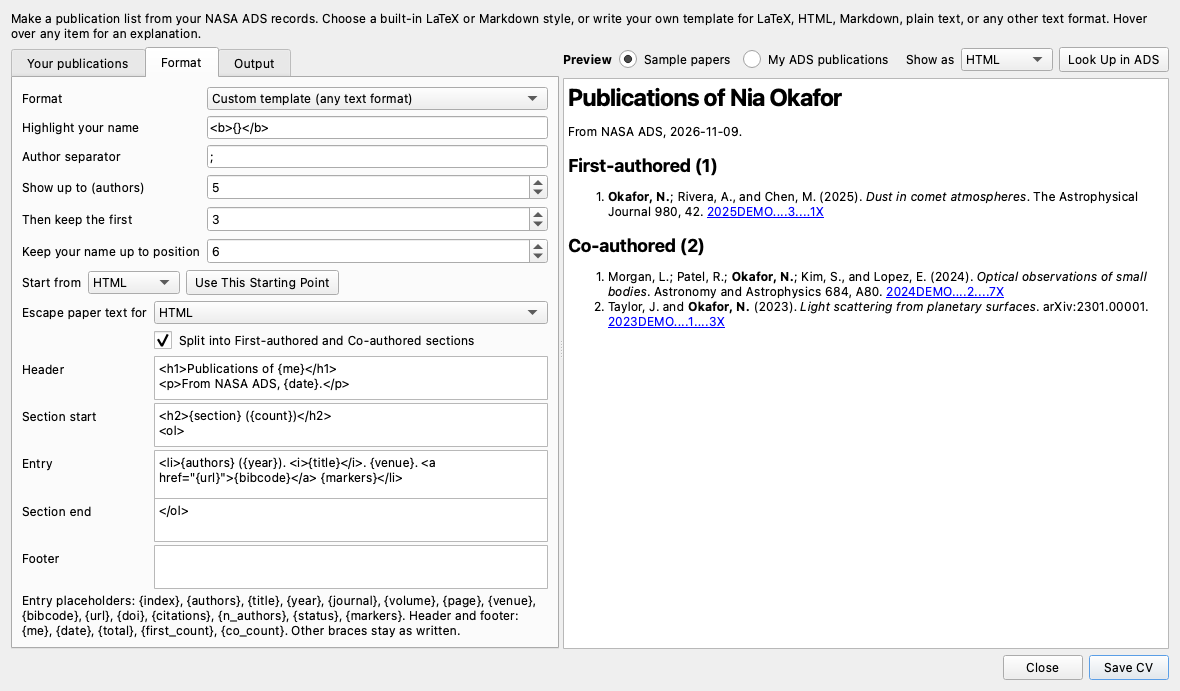
Tools → CV Generator… makes a publication list from your NASA ADS records.
Your publications: choose Fill from My Publication Profile, or type your ADS query, ORCID iD, and name.
Format: choose a built-in LaTeX or Markdown style, or Custom template. A template starts from LaTeX, Markdown, HTML, or Plain text. Then you control every part:
Highlight your name: the markup around your name, for example
\textbf{{{}}},<b>{}</b>, or**{}**.Entry: the text for one publication, with placeholders such as
{authors},{year},{title},{venue},{bibcode},{url}, and{citations}.Header, section start, section end, and footer: the text around the list, for example
<ol>and</ol>.
Check the Preview. Sample papers updates while you type. Look Up in ADS shows your real publications.
Choose Save CV.
This entry template makes one LaTeX line per paper:
\item {authors} ({year}) ``{title},'' \textit{{venue}}. \href{{url}}{\texttt{{bibcode}}}
The window keeps its settings in cv.yaml. See the CV reference for
every option, and Tutorial 6 to make the CV
from a script.
A list of any papers, without ADS
The same formats work for any papers in your library, for example a reading list or a reference list for a proposal. Select the rows (⌘-click or Shift-click), right-click, and choose Export Selection As…. Then choose the Publication list format. ADSfolio uses the stored details and needs no ADS token.