My paper is not on ADS
ADS does not index every paper. ADSfolio also finds papers through Crossref, DataCite, and arXiv. Choose the case that matches your paper:
You have the PDF, and you know its DOI or arXiv ID: Type the identifier.
Many PDFs have a DOI inside them: Identify them with Crossref or DataCite.
It has no DOI, or you have no PDF: Add it as a local reference. Examples are a book, a thesis, and a citation from Google Scholar.
Then export its BibTeX with the citation key style that you choose. None of these steps needs an ADS token. For the command line, see Tutorial 2.
Type the DOI or arXiv ID
Use this when one PDF in your library is not on ADS.
In the main table, select the PDF.
In the detail pane, choose Update by ID…. You can also right-click the row, or use ADS → Update and Rename Selected by Identifier….
Type the DOI, for example
10.5555/jex.2019.12.34, or the arXiv ID, for example2401.12345. Adoi.orglink also works.Choose OK.
ADSfolio asks ADS first. When ADS has no match, it asks Crossref and DataCite
in your provider order. For an arXiv ID, it uses the DataCite record of the
arXiv DOI, 10.48550/arXiv.<ID>. The PDF then receives the title, the authors,
and the year, and ADSfolio renames it with your Rename settings. The status
column shows a purple dot for usable metadata without an ADS link. This state
does not establish whether ADS contains a matching record.
An arXiv ID needs DataCite in your metadata providers, because Crossref does not have arXiv DOIs. When ADS adds the paper later, choose Update by ID… again. The PDF then receives its bibcode.
Check the identifier against the paper before you choose OK. ADSfolio uses the DOI as you type it, apart from lowercase letters. Remove sentence punctuation that you pasted with the DOI.
ADSfolio then compares the found record with the arXiv stamp and the DOIs in the PDF’s own metadata. If they contradict the record, it refuses the update. If the PDF states no such identifier, the update needs your explicit confirmation before ADSfolio saves the metadata or renames the file. See PDF identity checks.
To identify only some PDFs with the usual strategies, select their rows, right-click, and choose Identify Selected PDFs….
Identify PDFs by their DOI
Select the library, then choose Identify.
Choose Advanced options….
In Metadata providers, clear NASA/ADS, or move Crossref and DataCite above it with Up and Down.
Choose OK.
Choose Rename to preview new filenames from the found metadata.
DOI lookup fills missing metadata and records its provider and file digest. Existing metadata, manual edits, and catalog history remain intact. Reset recommended restores the default order: NASA/ADS, Crossref, then DataCite.
Extraction strategies decide where ADSfolio finds identifiers. Provider order decides which service receives a DOI. These are separate settings.
Export BibTeX
In the main table, select one or more PDFs. ADS papers and other papers can be in the same selection.
Right-click, then choose Copy BibTeX. For key choices and a preview, choose Export Selection As…, then choose the BibTeX format. See Export papers.
Choose the citation keys
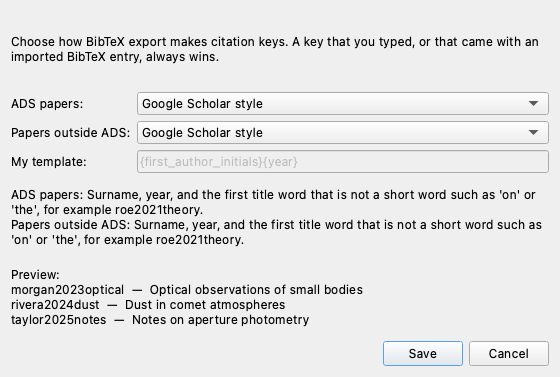
Open Tools → Citation Keys…. Choose one style for ADS papers and one style for papers outside ADS. The preview shows the keys of the selected papers.
Style |
Example key |
|---|---|
ADS bibcode (ADS papers only) |
|
DOI |
|
My template |
|
Google Scholar style |
|
Type each key |
You type the key at export. |
The defaults are the bibcode for ADS papers and the DOI for other papers. The Google Scholar style uses the surname, the year, and the first title word that is not a short word such as “on” or “the”. ADSfolio uses its own list of short words. It is not Google’s list.
A key that you typed, or that came with imported BibTeX, always wins over the style.
Template and Google Scholar keys contain ASCII characters only. For example,
“Muñoz, O.” gives MunozO, and “Straße” gives Strasse. Typed and imported
keys keep their characters.
When papers need a key
Export stops when a paper has no key, or when two papers share a key. ADSfolio then lists those papers.
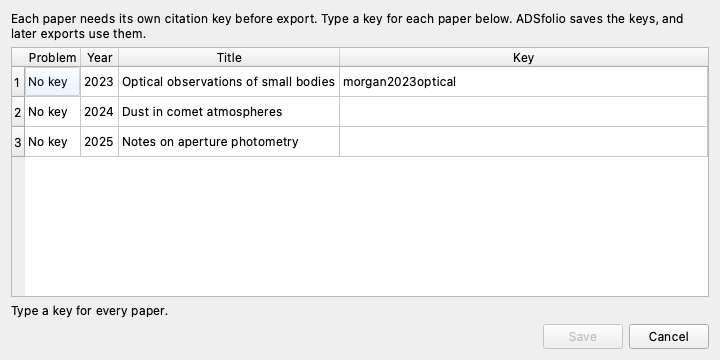
Type a key for each listed paper.
Choose Save. Save stays off until every paper has its own key.
ADSfolio saves the keys, so the next export uses them. A metadata refresh keeps them.
Renaming a paper that is not on ADS
You can rename a PDF that has no ADS record. It needs a current title, authors, a year, and external or manual provenance. The default filename omits the bibcode when none exists. A custom template still uses the fields that you specify.
Current verified or user-confirmed PDF identities appear in Identified without ADS. Complete metadata alone does not establish identity. Unconfirmed metadata remains under Needs identification. Use Update by ID… to confirm the selected PDF. ADS rechecks can add a bibcode later. These views do not change rename requirements or move files.
When the PDF file changes
If a PDF’s contents change, ADSfolio keeps the stored metadata but marks it stale. Stale metadata cannot authorize automatic renaming. F5 reconciles local file facts. Renaming also checks a known content digest.
Editing notes does not revalidate stale metadata. DOI lookup fills only blank fields. It does not replace retained fields, so it does not clear this safeguard. Review a changed PDF before you relink its metadata.
Add a local reference
Open File → Local References…. Use it for a book, a thesis, a report, or a paper that you found elsewhere. You can save a reference without a PDF, a DOI, or an ADS token.
Copy a citation from Google Scholar
In Google Scholar, choose Cite → BibTeX under the result, then copy the BibTeX text.
In ADSfolio, open File → Local References… and choose Import BibTeX….
Paste the text and choose Preview.
Check the citation key and the title.
Choose Add references.
To import a saved .bib file, use Open .bib… in the import window.
ADSfolio uses the text that Google Scholar exports. It does not scrape Scholar.
See the Google Scholar help page.
Add, edit, and export
Add manually… saves a reference that you type in.
Edit… changes the fields of the selected reference.
Attach PDF… links an existing PDF without moving it.
Export selected… and Copy BibTeX write the selected references.
The list also shows papers already identified through ADS, including papers outside the selected PDF folder. You can export ADS and local references together in one bibliography. The main table still shows PDFs only. A reference without a PDF appears only in Local References….
What ADSfolio keeps
Each reference has a local ID, a citation key, and an optional ADS bibcode.
Smith2025Report is a citation key. ADSfolio never sends it to ADS as a
fabricated bibcode. A complete external reference remains a local reference
even when ADS cannot identify it.
Import keeps every bibliographic field, including fields that the editor does not show. Import also keeps the source text as provenance. Export uses the current edited fields. To change these fields, use Edit… in Local References…. The PDF detail pane directs edits there, so that several attachments keep the same bibliography data.
Export writes the same bibliography, not a byte-for-byte copy of the imported file. Whitespace and formatting can change.
ADSfolio expands BibTeX macros.
Export includes required cross-reference parents.
A missing dependency causes an error instead of an incomplete bibliography.
Export checks the selected references before it replaces an output file. An error keeps the existing file.
Import and save require unique citation keys and DOI identities. Correct any duplicates first. ADSfolio does not merge references automatically. A failed batch import saves no entries from that batch.
Limits
ADS fields: local export uses stored metadata. ADS fields that ADSfolio never fetched are not available automatically.
ADS libraries: Export ADS Library… is a separate remote operation. ADS library synchronization excludes local-only references.
Linking to ADS later: a PDF that you updated by DOI receives its bibcode when ADS adds the paper and you update it again. For a local reference without a PDF, DOI lookup and linking to ADS are future steps.
Backups: BibTeX does not keep attachment locations, local IDs, or import history. To keep them, back up the central catalog. Close ADSfolio before you copy the SQLite catalog, so that pending writes finish.
Other reference managers
ADSfolio focuses on NASA ADS / SciXplorer research workflows. Its local references fill gaps in ADS coverage. They cover intake, metadata correction, optional PDF links, and mixed BibTeX export. ADSfolio does not add browser capture, word-processor integration, or a cloud library.
Zotero and
Mendeley offer those broader
workflows. You can use one of them alongside ADSfolio, and exchange data through
.bib files.